Running a contracting business means juggling more than the actual work. You’ve got estimates, invoices, client details, payments, and a dozen other things competing for your attention.
That’s what The Contractor’s Toolbox is for: a regular look at what’s new in Joist, tips to help you get more out of it, and practical advice for running your business. Here’s what’s inside this edition.
New Tools for Your Toolbox
The Joist team is always working to add features and capabilities that make the business side of contracting easier. Take a look at the latest updates from Joist.
Client Profiles
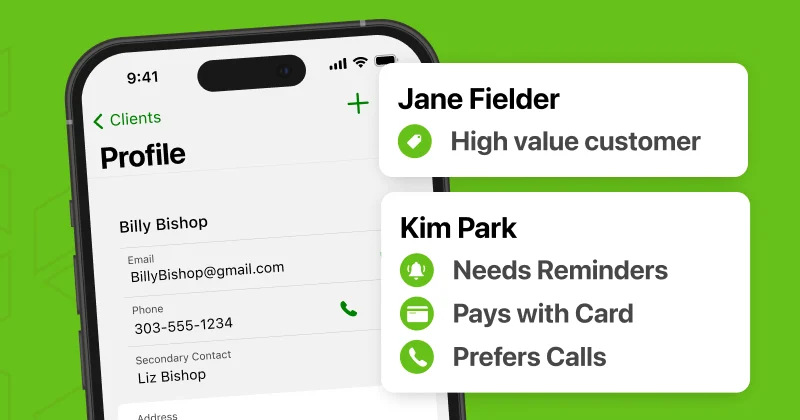
Keeping track of client details across texts, emails, and sticky notes gets messy fast, especially once you’re juggling more than a handful of jobs at a time. Client Profiles gives every customer a permanent home in Joist: contact info, private notes, and their full job history, all attached to their name.
That means when a past client calls about a new project, you’re not digging through old text threads to find their address or remembering what you quoted them last time. You pull up their profile and it’s all there—every estimate and invoice you’ve ever sent them, in one place.
How to use it: Tap the Client icon to view, edit, or add a client. Once you add someone, their info automatically attaches to every estimate and invoice you send them going forward—no re-entering details job after job. You can search your full client list any time you need to find someone quickly, whether you’re prepping for a callback or following up on an old lead.
Beyond the basics, Client Profiles keep a running history of your relationship with each customer. This is especially useful when you’re deciding who to reach out to for repeat work, or when a client mentions “the last job you did for us” and you want to pull it up on the spot.
Learn More About Client Profiles →
Mobile Check Capture
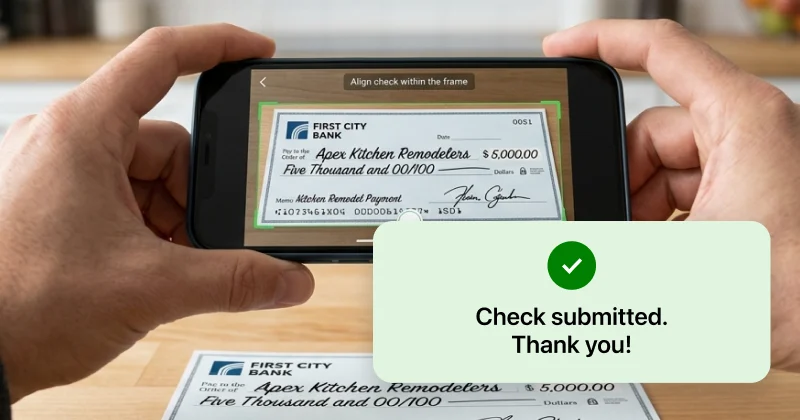
For contractors who still collect paper checks, this one’s a time-saver. Stripe users can now deposit a check straight from their phone—no trip to the bank required.
Here’s why it matters: every trip to the bank is time you’re not spending on the job, and every day a check sits in your truck is a day it’s not in your account. Mobile Check Capture closes that gap. Snap a photo of the front and back, and you’re done. You didn’t even have to change out of your work boots!
How to use it: Make sure online payments are enabled in Settings and your account is connected to Stripe. From there, snap a photo of the check and skip the trip to the bank entirely.
Using PayPal instead? You can add Stripe as your payment processor any time from Settings. Just know Joist supports one processor at a time, not both simultaneously.
Did You Know?
Every issue, we’ll spotlight a couple of built-in Joist features you might not have explored yet:
Control what your clients see on invoices. Not every job needs a line-by-line breakdown in front of the customer. Under Settings → Display Settings, you can toggle the Quantity, Rate, and Total columns on or off. So you decide how much detail shows up on what your client sees. Whatever you choose applies to new estimates and invoices going forward, but you can always adjust it later if a particular job calls for something different.
Know exactly where an estimate or invoice stands. No more wondering if a client actually opened what you sent. From your Estimate List or Invoice List, a quick glance at the icon tells you the status: a closed envelope means it’s been sent, an open envelope means your client has viewed it, and a pen icon means it’s been signed or approved. It’s a small thing, but it means you can follow up at exactly the right moment—not too early, not too late.
Real Contractors, Real Results
Here’s what one contractor using Joist has to say:
“As the owner of Direct Tree Service, I have utilized various leading invoice and estimate applications. I can confidently state that Joist stands out as the superior choice. This application offers comprehensive functionality, encompassing features such as attaching job-related photographs, meticulously tracking expenses, and facilitating credit card payments, including tap-to-pay options. I wholeheartedly endorse this application, as its capabilities extend far beyond these examples.”
— Preston Strait, Direct Tree Service
Running Your Business: Know Your Payment Setup
Each issue, we’ll dig into one practical business topic. This time, it’s about choosing the right payment structure for the job.
Should you ask for a deposit, a retainer, or a draw schedule? It’s not a small question. Getting it wrong can mean floating labor and materials out of your own pocket for weeks at a time.
The right structure comes down to the job in front of you. Shorter jobs are usually well-served by a simple upfront deposit—enough to cover your early material costs and confirm the client’s committed. Longer or multi-phase jobs are a different story: tying payments to milestones (a draw schedule) keeps cash moving alongside the work, instead of leaving you exposed for weeks between the start of a job and the final payment.
If you’re not sure which setup fits your next job—or want a clearer sense of how much to collect upfront, how draw schedules work for phased projects, or what states legally cap on deposits—we broke it all down in a full guide.
See Which Payment Setup Fits →
New to Joist? Start your free trial →
Already a customer? Log in to explore everything above →